Is there anything more frustrating than settling in for your favorite show in Spring, only to have your TV screen start flickering like a faulty lightbulb? Whether you’re binge-watching in Atascocita or catching the game in Indian Springs, a flickering display can ruin the moment. At Spring TV Repair, we’ve seen this issue countless times in homes across the Spring area, and the good news is that many cases can be resolved quickly with some basic troubleshooting. In this guide, we’ll walk you through practical steps to diagnose and fix the problem yourself, saving you time and hassle. If DIY doesn’t cut it, our expert technicians are just a call away, serving neighborhoods like Cypresswood and Northgate Crossing with reliable LED TV repair services.
Flickering screens aren’t just annoying—they could signal anything from loose cables to deeper hardware faults. But don’t panic; most fixes take under 30 minutes. Let’s dive in and get your TV back to crystal-clear viewing.
Understanding Why Your TV Screen Flickers
Before jumping into fixes, it’s helpful to know what’s causing the flicker. TVs, especially modern LED and OLED models popular in Spring households, can glitch for various reasons. Identifying the root cause helps you target the right solution and prevents future issues.
Common Causes of TV Screen Flickering
One of the most frequent culprits is faulty connections. Loose HDMI cables or power cords can interrupt the signal, leading to intermittent flickering. In humid Spring weather, corrosion on ports might exacerbate this—something we’ve repaired for many clients in Timber Lakes.
Another common issue is backlight problems, particularly in LED TV repair scenarios. The LED strips behind the screen can wear out over time, causing uneven lighting and flickers. Overheating is also a factor; if your TV is in a stuffy room without proper ventilation, it might overwork and glitch.
Software glitches shouldn’t be overlooked either. Outdated firmware can cause display instability. For instance, if your smart TV hasn’t had a recent update, it might struggle with signal processing. And don’t forget external factors like power surges—common during Spring storms—which can damage internal components.
When Flickering Indicates a Serious Problem
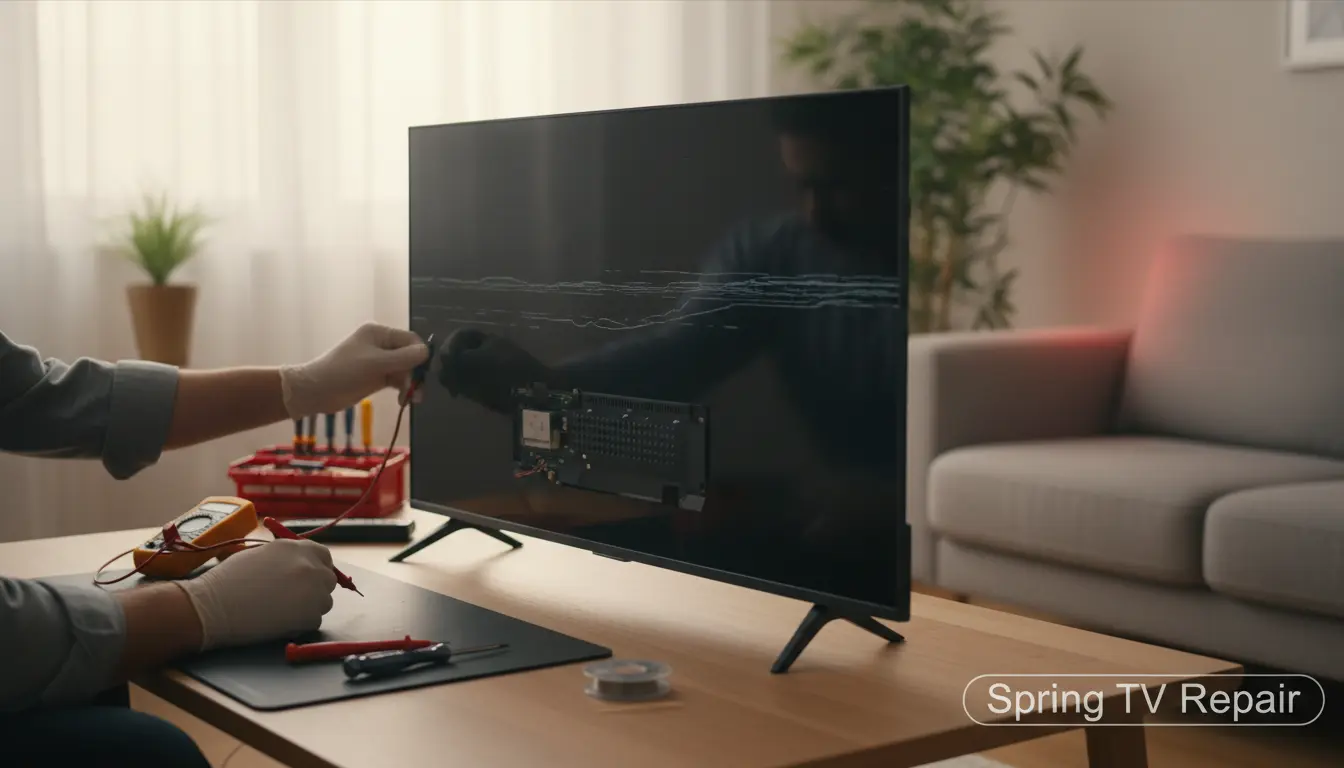
Not all flickers are minor. If the screen blinks rapidly, changes colors, or flickers only in certain modes (like HDR), it could point to a failing panel or inverter board. In OLED displays, this might stem from burn-in or pixel degradation, requiring specialized OLED display repair. We’ve handled such cases in areas like Atascocita, where high-end TVs are common, and early intervention can save you from a full replacement.
If troubleshooting doesn’t help, or if you notice accompanying issues like no sound or distorted audio, it’s time to call professionals. Delaying could lead to costlier repairs down the line.
Quick Troubleshooting Steps for a Flickering TV Screen
Armed with knowledge, let’s get hands-on. Follow these steps in order—they’re designed for quick wins and work for most TV brands, from Samsung to LG, found in Spring homes.
Step 1: Inspect and Secure All Connections
Start simple: power off your TV and unplug it. Check every cable—HDMI, coaxial, power, and any external device connections like streaming boxes or soundbars. Wiggle them gently to ensure they’re snug; a loose fit can cause signal drops and flickers.
Pro tip: Clean ports with compressed air to remove dust, especially if your setup is in a pet-friendly home in Indian Springs. If you’re using an older plasma model, consider our plasma TV repair services, as these are prone to connection sensitivities.
Once reconnected, power on and test. If flickering persists, move to the next step.
Step 2: Perform a Power Cycle Reset
Many electronic glitches resolve with a full reset. Unplug the TV from the wall outlet (not just the power button) and wait 5-10 minutes. This discharges residual power and clears temporary faults.
While waiting, check your surge protector—replace it if it’s old, as unstable power is a big flicker trigger in Spring’s variable grid. Plug back in, turn on, and observe. This fix works 40% of the time for our clients in Cypresswood.
Step 3: Adjust Picture Settings and Test Inputs
Navigate to your TV’s settings menu (usually via the remote’s menu button). Look for picture modes—try switching from ‘Movie’ to ‘Standard’ or disabling energy-saving features, which can dim backlights unevenly.
Test different inputs: If flickering only happens on HDMI 1, the issue might be with the connected device. Bypass externals by using the TV’s built-in apps. For smart TVs, ensure Wi-Fi is stable; weak signals in rural spots like Timber Lakes can mimic display issues.
If it’s an audio-visual sync problem, our audio system repair team can help integrate fixes seamlessly.
Step 4: Update Firmware and Software
Outdated software is a silent flicker culprit. Go to settings > support > software update, and check for downloads. Connect to Ethernet for a stable connection if Wi-Fi is spotty.
This step is crucial for modern TVs. If manual updates fail, our firmware update service ensures your device runs smoothly without voiding warranties—perfect for busy families in Northgate Crossing.
Step 5: Check for Overheating and Environmental Factors
Feel the TV’s vents; if hot, improve airflow by moving it away from walls or curtains. In Spring’s warm climate, use a fan nearby during troubleshooting.
Dim room lights to rule out reflections, and avoid direct sunlight, which can strain the screen. If it’s a wall-mounted unit in Atascocita homes, ensure secure mounting to prevent vibrations.
Advanced Tips for Persistent Flickering
If basic steps fail, dig deeper. Use your TV’s diagnostic mode (search your model online for access codes) to run self-tests. This can pinpoint hardware errors.
For backlight issues, gently tap the back panel (unplugged, of course) to reseat components— but only if you’re comfortable; otherwise, leave it to pros. In OLED cases, avoid DIY to prevent further damage.
Local Spring residents often face unique challenges, like power fluctuations from nearby construction in growing areas like Indian Springs. Investing in a quality UPS can prevent recurrences.
FAQ: Common Questions About TV Screen Flickering
Why Does My TV Screen Flicker Only at Night?
This could be due to ambient light changes affecting sensors or power draw variations. Check settings for auto-brightness and ensure stable voltage. If it persists, contact Spring TV Repair for a home visit in your Spring neighborhood.
Is Flickering Covered Under Warranty?
Often yes, especially if it’s a manufacturing defect. Keep your receipt and model details handy. For extended coverage, our repair services in Cypresswood include warranty assistance.
Can I Fix a Flickering Screen Myself Without Tools?
Absolutely—most steps here require no tools. Start with connections and resets. For hardware, though, professional LED TV repair is safer to avoid voiding warranties.
How Long Does a TV Repair Take in Spring?
Quick fixes like cable issues take same-day, while panel repairs might need 2-3 days. We prioritize locals in areas like Northgate Crossing for fast turnaround.
When Should I Replace My TV Instead of Repairing It?
If repair costs exceed 50% of a new model’s price, or if it’s over 5-7 years old, upgrading might be better. Consult our experts for advice tailored to Spring’s market.
Conclusion: Get Your TV Fixed Fast with Spring TV Repair
Troubleshooting a flickering TV screen doesn’t have to be overwhelming. With these quick steps—from checking connections to updating firmware—you can often restore smooth viewing in under an hour. Remember, in Spring’s vibrant communities like Atascocita and Timber Lakes, a reliable TV is key to family entertainment.
But if the problem lingers, why struggle alone? At Spring TV Repair, our certified technicians specialize in everything from OLED display repair to full diagnostics, serving all of Spring and surrounding areas. Don’t let flickers interrupt your downtime—schedule a repair today by calling us or visiting our site. Clear screens await! (1247 words)